All posts by Radi

We’ve Updated Our Content Appeals Process

Today, we’re releasing a new way to submit an appeal if you believe one of your videos has been incorrectly flagged by our Audio Recognition system.

The new functionality will initially be available to all members of the Twitch Partner Program and non-partner broadcasters whose videos are in HTTP Live Streaming (HLS) format, which is roughly 25% of non-partner broadcasters. We are in the process of storing all newly created VODs in HLS format rather than Flash Video (FLV) format. (How can you tell if your videos are in HLS or FLV? Check the VOD URL. HLS VODs will have /v/ in the URL; FLV will have /b/.)

For those broadcasters not included in the introductory rollout, the Audio Recognition appeal process will function as it currently does today. All broadcasters will still be able to appeal a muted VOD regardless of format.


One major addition to the appeals process is the upfront education around what can and cannot be appealed, which is based on common content appeals to date. We want to make sure our broadcasters are educated as to what kind of audio is allowed/not allowed and what you should appeal.

For now, here’s a sneak peek at how the new Audio Recognition appeal process will work. When you think your VOD has been incorrectly flagged:

1. Click on the video you’d like to appeal. Videos with muted audio have a red muted speaker icon in the upper right corner of the thumbnail.

Click on the video you'd like to appeal.
2. Find the audio track(s) you would like to appeal.

Find the audio track(s) you'd like to appeal.
3. Choose the reason for the appeal.

Choose the reason for the appeal.
4. Confirm the audio you’ve selected to appeal.

Confirm the audio you've selected to appeal.
5. Attest that you have the right to use the flagged audio and submit.

Attest that you have the right to use the flagged audio and submit.
6. Check your submission.

Check your submission.
You can check the status of your appeal by clicking on the appealed video where you will see either Unmuted or Denied. When your video has been reviewed, you’ll receive an email with the outcome of your appeal.

Email status update.
If you already have a muted video in appeal, you should not submit a new appeal. We will respond to your original appeal (and all appeals) in the order in which it was received.

Stay tuned for updates as we roll this new process out to everyone over the coming months.

The post We’ve Updated Our Content Appeals Process appeared first on The Official Twitch Blog.
New Chat Updates: Display Name and more!

In the last week, we’ve rolled out two updates to chat: Display Names and an emote selector. Let’s take a look at each one.

Display Names in Chat

One of our most requested updates since FOREVER is to show Display Name capitalization in chat instead of your username with the first letter capitalized. Well, we’re excited to announce that today’s the day! Your name in chat will now respect the capitalization of your Display Name. (You can manage your Display Name on your Settingspage.)

NOTE: Your Display Name must still match the characters and their sequence in your username; that is, you cannot have a different Display Name from your username. Also, no name changes. #Kappa

For now, Display Name capitalization will only be shown on web chat with other platforms coming soon, and logins will still show up in autocomplete and highlighting in Chat Mentions.

A change to your Display Name should be reflected in chat in approximately one minute.

Emote Selector

Last week we added an emote selector to chat. Click on the emote icon in the top right corner and you’ll see EVERY GLOBAL EMOTE. You’ll also see which subscriber emotes you have access to on a per-channel basis.

Emote Selector
Simply click on the emote you want to use to add it to chat. It’s that simple.

Keep an eye on the blog, Facebook, and Twitter for more feature updates!

Chat Mentions Comes To Mobile

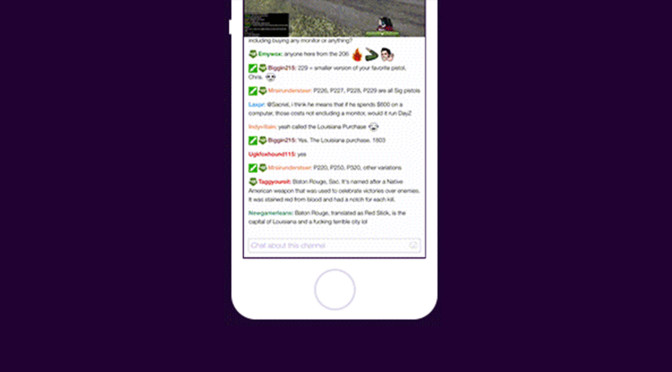
Starting today, you’ll be able to use Chat Mentions on both iOS and Android. Just like web, when you mention someone in chat, that name will be bolded in the mentioned user’s selected chat color.

mention-email

To mention someone, type @ or tap on a username within the chat window. From there, you can choose to mention (happy face) or ignore a user (sad face). If you’re the moderator of a channel, you’ll also see options to time-out or ban someone. Note: You can still moderate using the viewer list.

To try these features now, update your app via Google Play or the App Store.

Stream of Consciousness: Jason Somerville’s Twitch Teachings

One of the growing trends to emerge from online poker’s post-Black Friday reconstruction period is the integration of live video streaming for the purpose of interactive instruction. Typically broadcasting via the Twitchplatform — a pioneering industry leader in the live streaming game — several well-respected poker pros have established themselves with must-see streams.

At any given time you can find Randy “nanonoko” Lew, Jaime “PokerStaples” Staples, Felix “xflixx” Schneiders, and many others playing on their respective (and popular) Twitch channels. Even Chris Moneymaker— the central figure in that earlier “boom” in poker over a decade ago — is now among those live streaming their online sessions for the world to watch.

Continue reading Stream of Consciousness: Jason Somerville’s Twitch Teachings